

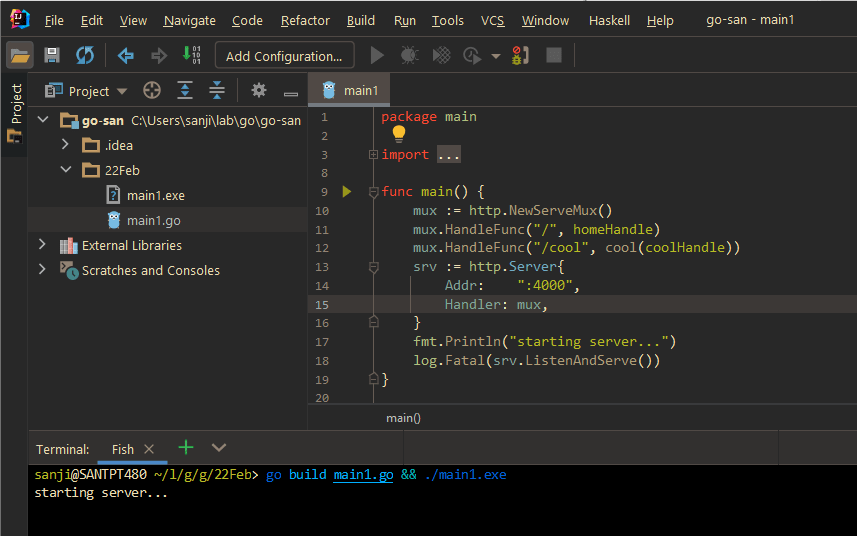
If you do Go web development on Windows, then you are likely to come across the Windows Firewall – Security Alert whenever you build and run the Go app. For example, here I am trying to build and run a sample Go web server program “main1.exe” that wants to run on port 4000:

This can be annoying when you create a lot of throw-away small apps for learning; you end up with hundreds of these “allow” rules in the Firewalls ruleset. Here’s a small glimpse of all the rules that got created running an experimental web program “multiple_handlers.exe”:

I am not sure if hundreds or even thousands of these junk rules slow up the system. To me they are junk for sure as I am not likely to run these again after the learning and testing is done. So my solution is to create a single inbound rule for port 4000 and always try to stick to the same port when developing web programs in Go. Here is how to do it in Windows:
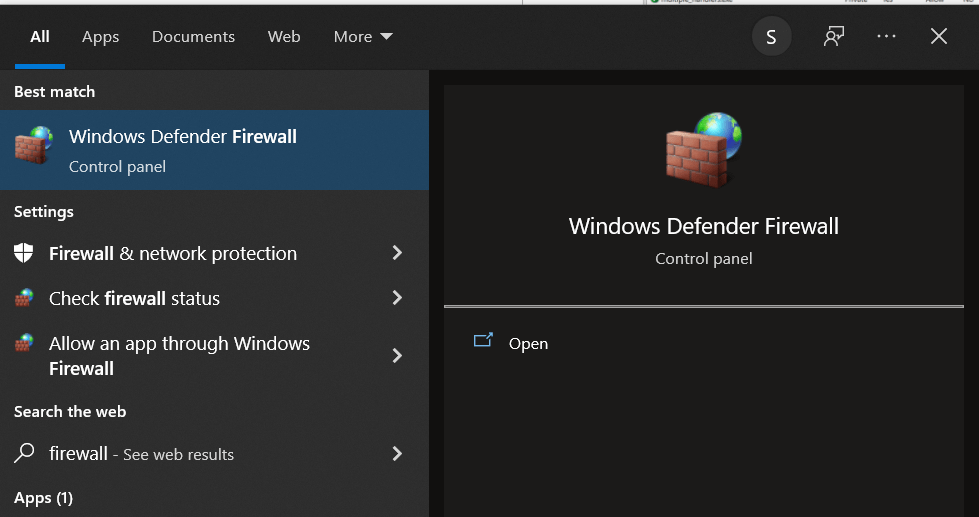
1. Press the Windows key (start button) on your keyboard and start typing “firewall”, click the Windows Defender Firewall link as shown below:
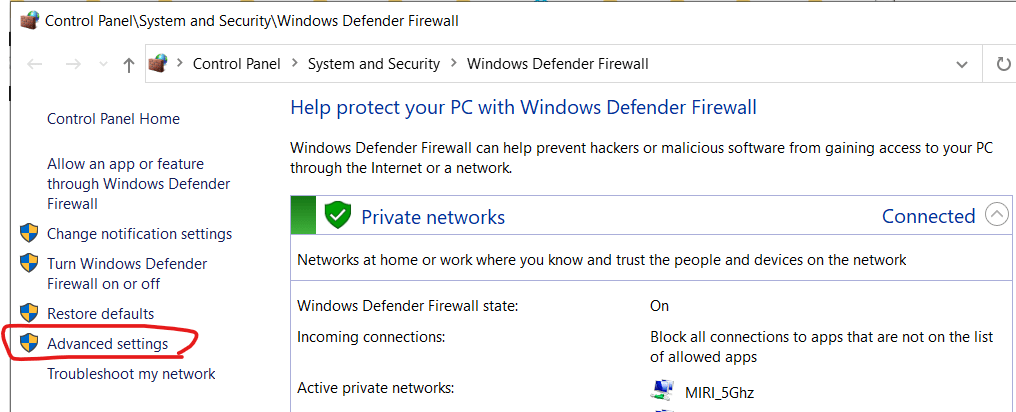
2. Next click on “Advanced settings”
3. Then right-click on “Inbound Rules”, which will bring up a pop-up menu, then click “New Rule…”

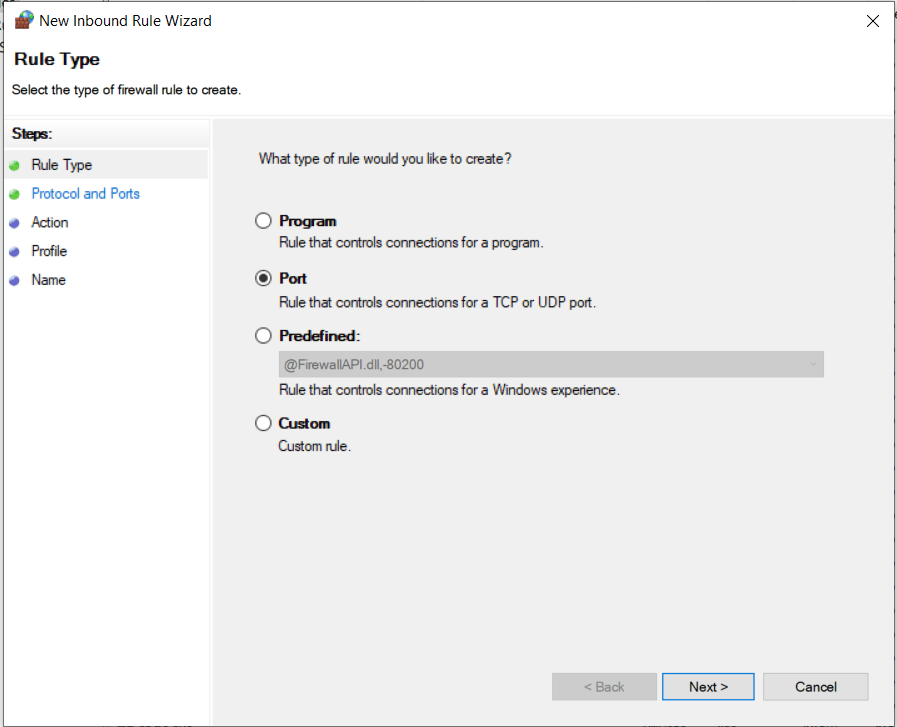
4. Select “Port” then click Next
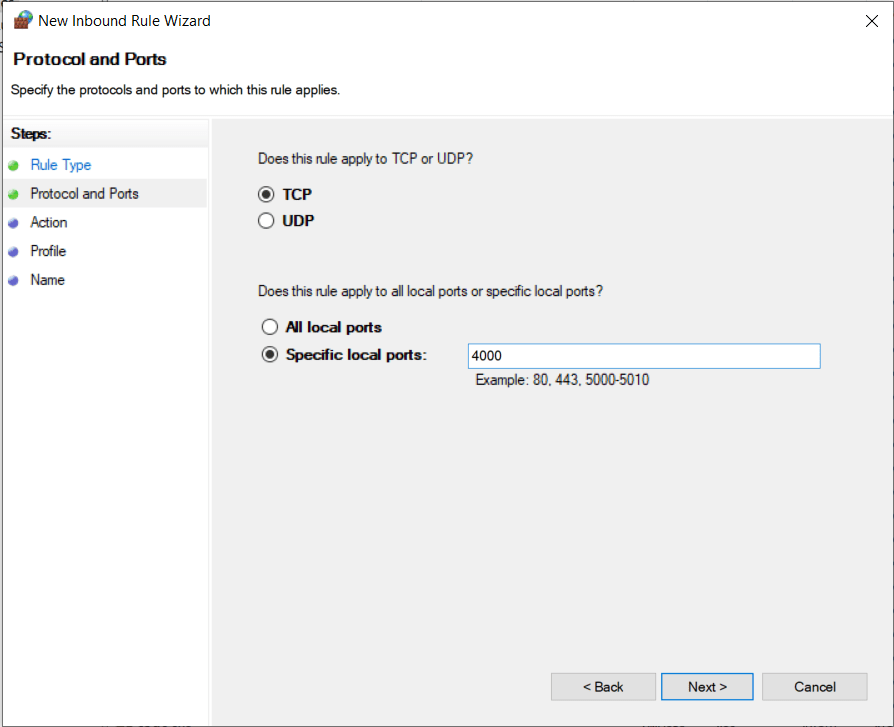
5. Type the port you want to allow. I choose 4000 for local development, so that’s what I specify and click Next.
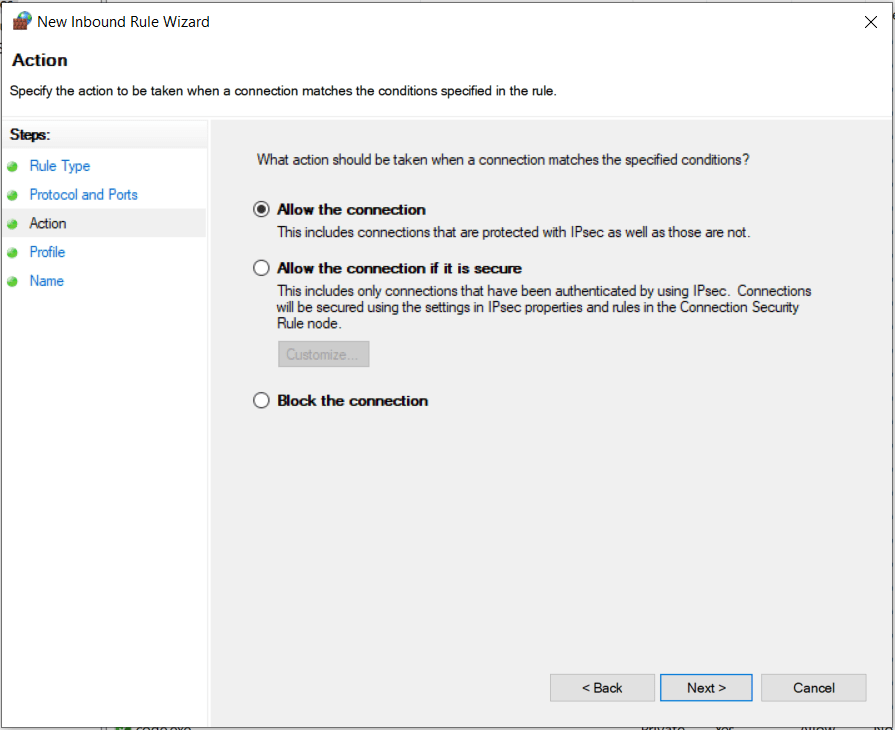
6. Select “Allow the connection” and click Next
7. I work from home, so I choose “Private” only and click Next

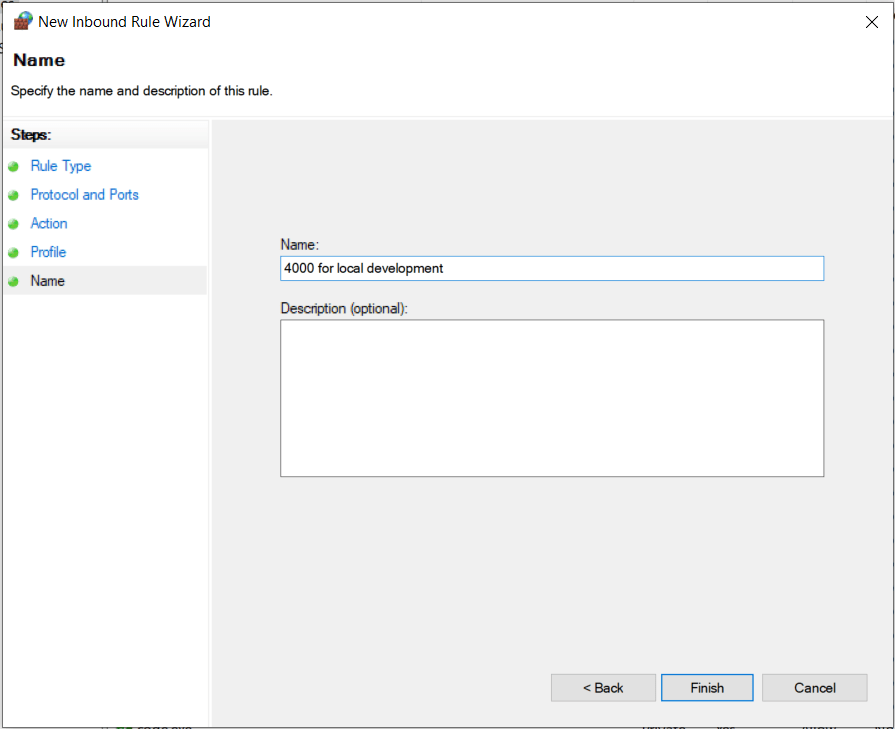
8. Give the rule a friendly name, I gave it “4000 for local development” and click Finish
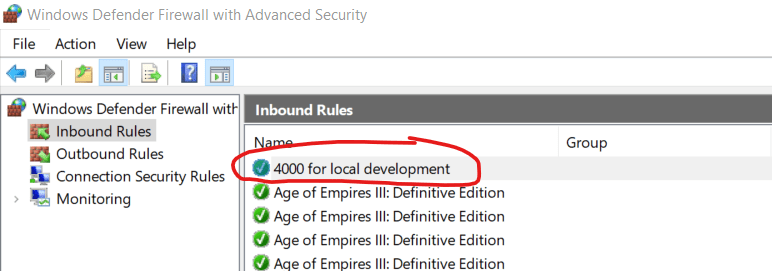
9. The rule should now be created and can be seen as below.
Now I can happily run my Go web programs on port 4000 and never receive a Windows firewall security alert ever again 😀
 oak.dev