Golang SQL Injection in MariaDB / MySQL

Golang SQL Injection in MariaDB / MySQL

Here is a hand-on demonstration of an SQL injection attack in Go using MariaDB / MySQL with driver multiStatements parameter set to true. By default this is set to false, so if you are testing make sure it’s set to true. After testing the SQL injection, the demonstration continues by using SQL statement parameters – which mitigates any possible SQL injection.

Example SQL injection (include space after — below) code:

'); truncate messages; -- 

Get the code from the repository: https://github.com/sanjib/go-sql-injection-demo

There are 3 relevant files:

  • main.go
  • home.tmpl
  • db.sql

Simply run the main.go file using “go run .” in the current folder where the files are placed. The home.tmpl is a template file which is used in the code. The db.sql contains the schema for you to create the table.

You should also change the openDB() function where the DSN (data source name) to include your username, password and database name to your own MariaDB / MySQL database. For example, I have used:

db, err = sql.Open("mysql", "root@/va_test1?parseTime=true&multiStatements=true")

Replace, “root” with your username and “va_test1” with your database name. If you have a password, use it after the username preceded with a colon. For example:

db, err = sql.Open("mysql", "your_username:your_password@/your_database_name?parseTime=true&multiStatements=true")

XAMPP Upgrade Tasks

I usually have 3 simple and separate tasks for a XAMPP upgrade or any general development environment migration (for example when moving to a new Windows or Mac hardware).

  1. Moving the source codes, files and assets: copy the www folder with all the project source codes local virtual host domains
  2. Apache configuration: edit the httpd.conf and httpd-vhosts.conf files
  3. MySQL migration: migrate the database

Source files

Usually I have a separate www folder configured with vhosts.

Apache Configuration

I only change the following line in httpd.conf because I like to develop on port 8080.

Listen 8080

And as a habit (Debian and FreeBSD) check if the vhosts file is included:

Include conf/extra/httpd-vhosts.conf

The httpd-vhosts.conf file has multiple entries (for each project or local domain name):

<VirtualHost *:8080>
    ServerName client1.san
    ServerAlias www.client1.san
    DocumentRoot C:/xampp/www/client1
</VirtualHost>

MySQL Migration

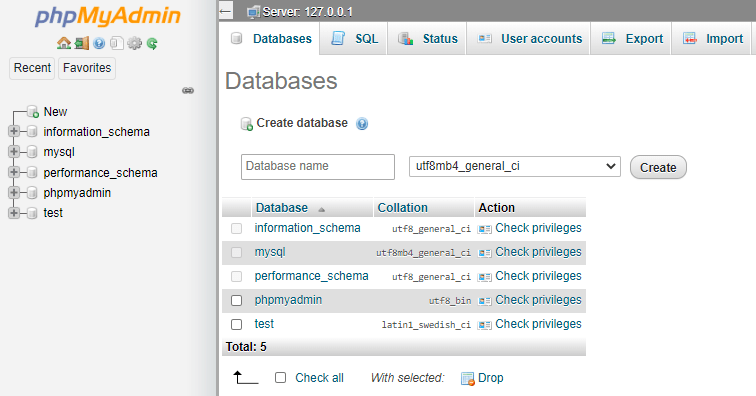
A fresh copy of a pristine MySQL installation with PHPMyAdmin has the following databases:

  • information_schema
  • mysql
  • performance_schema
  • phpmyadmin
  • test

So when migrating I try to avoid copying over those five databases / schema.

Preview(opens in a new tab)

While it might be OK to dump the database via PHPMyAdmin, it’s not a good idea to restore it via a web interface. For example my combined database size is almost 1 GB.

So ensure you have a decent max_allowed_packet size in specified in my.ini:

max_allowed_packet=16M

Then run the database restore command manually from the command line. For example:

mysql -u root < databases_to_migrate.sql

MySQL Workbench 8.0 – Set the Default Time Zone

MySQL Workbench 8.0 – Set the Default Time Zone

MySQL Workbench 8.0.19
MySQL Server 8.0.19

Summary

Here is a single screenshot summary of the actions you need to take in 6 labelled steps to change the time zone via MySQL workbench:

Detailed Steps

A detailed list of steps follow below.

Step 1 & 2

Either click from the main navigation menu -> Server -> Options File:

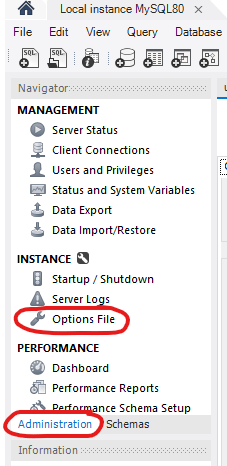
Or from the left navigation Administration tab -> Options File:

Step 3, 4 & 5

Then under General tab scroll down to the International field set, then locate the default-time-zone field, set it to your preferred zone:

Step 6

Then click on the Apply button:

You will get a confirmation box, hit the Apply button.

Directly Edit Config File my.ini

An alternative would be to directly edit the my.ini file and set the property:

default_time_zone = +8:00

In Windows 10, you can find the file here:

C:\ProgramData\MySQL\MySQL Server 8.0\my.ini