DoS Attack Demo and Prevention in Go

DoS Attack Demo and Prevention in Go

Demonstrates and provides solution to following DoS (Denial of Service) attacks in Go:

  • Slowloris
  • Large file

The solutions are trivially simple to implement in Go often consisting of a simple configuration directive or making use of a standard library function.

Slowloris

Send requests to the server extremely slow. The notable thing about this DoS is it takes very little resource in terms of memory or CPU. The goal is to send a large number of requests that all send extremely slow requests – thus making the server use all its connection while waiting on the requests to complete.

Solution: specify a read timeout. For example, on the standard Go web server, you can configure as follows with the directive “ReadTimeout: 1 * time.Second”:

srv := &http.Server{
    Addr:        ":3000",
    Handler:     mux,
    ReadTimeout: 1 * time.Second,
    //WriteTimeout: 10 * time.Second,
    //IdleTimeout:  1 * time.Minute,
}

Large File

Send very large requests to server. The goal is to overwhelm the server as it tries to process the large requests often gigabytes in size. In contrast to Slowloris, this type of attack requires more memory and CPU to send large files from the client.

Solution: use LimitReader to limit the number of bytes to read from the request. For example, here we specify a 100K limit to the reader:

io.LimitReader(r.Body, 100_000)

Source Code

The full source code and how to run the demos can be found here:

https://github.com/sanjib/go-dos

Golang SQL Injection in MariaDB / MySQL

Golang SQL Injection in MariaDB / MySQL

Here is a hand-on demonstration of an SQL injection attack in Go using MariaDB / MySQL with driver multiStatements parameter set to true. By default this is set to false, so if you are testing make sure it’s set to true. After testing the SQL injection, the demonstration continues by using SQL statement parameters – which mitigates any possible SQL injection.

Example SQL injection (include space after — below) code:

'); truncate messages; -- 

Get the code from the repository: https://github.com/sanjib/go-sql-injection-demo

There are 3 relevant files:

  • main.go
  • home.tmpl
  • db.sql

Simply run the main.go file using “go run .” in the current folder where the files are placed. The home.tmpl is a template file which is used in the code. The db.sql contains the schema for you to create the table.

You should also change the openDB() function where the DSN (data source name) to include your username, password and database name to your own MariaDB / MySQL database. For example, I have used:

db, err = sql.Open("mysql", "root@/va_test1?parseTime=true&multiStatements=true")

Replace, “root” with your username and “va_test1” with your database name. If you have a password, use it after the username preceded with a colon. For example:

db, err = sql.Open("mysql", "your_username:your_password@/your_database_name?parseTime=true&multiStatements=true")

EditPlus Setup for Go

EditPlus Setup for Go

This article shows how to setup EditPlus for editing Go files.

  1. Syntax highlighting
  2. Build and run Go files

EditPlus is a small program for editing files; it’s fast and doesn’t use much memory. I use it for writing experimental programs and tests in Go.

Program: EditPlus
Operating System: Windows 10

Syntax Highlighting

Download the Go “stx” file go2.zip from this page: https://www.editplus.com/others.html. If you search for “Google” on that page, you should be able to find the following line:

Google’s Go programming language stx – sethborg (2011-01-17)

There is another older version: Google’s “Go” stx – Nate Eriksmoen (2009-11-14)

Extract the go2.zip file and move the go.stx file to your EditPlus “user settings” directory. Your “user settings” directory should be something like:

C:\Users\your-name\AppData\Roaming\EditPlus

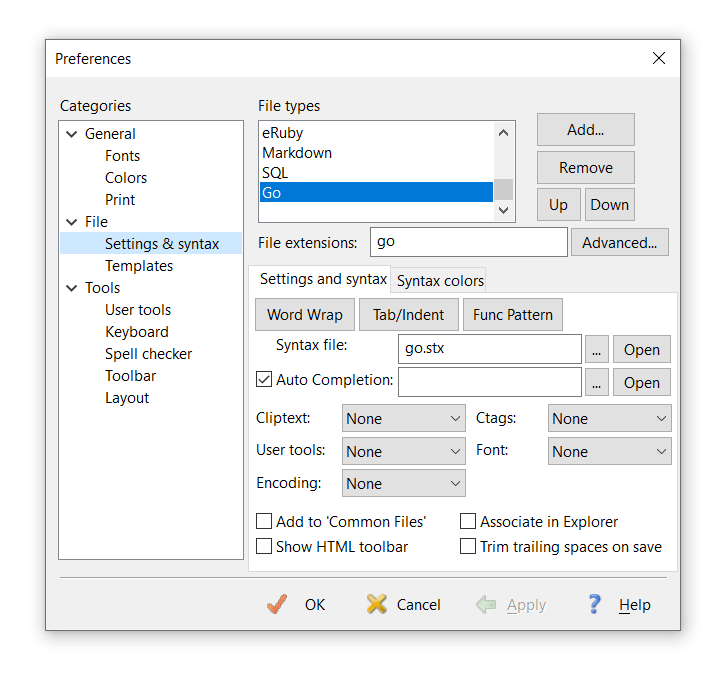
Then go to “Tools” -> “Preferences” -> “File: Settings & Syntax”. Add an entry for Go with the following settings:

File extensions: go
Syntax file: go.stx

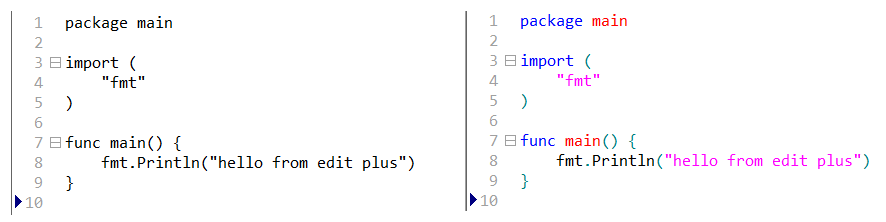
Your Go code should now have syntax highlighting enabled as can be seen below (before/after):

Build and Run Go Files

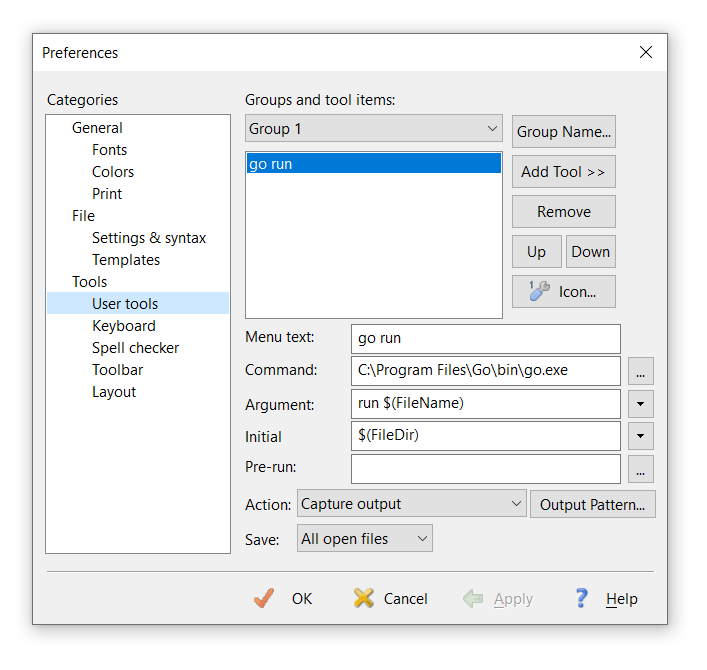
In EditPlus, click “Tools” -> “Configure User Tools”. Click “Add Tools” with the following settings:

Menu text: go run
Command: C:\Program Files\Go\bin\go.exe
Argument: run $(FileName)
Initial: $(FileDir)
Action: Capture output

Now you can use the “Tools” -> “go run” command to build and run your Go files from EditPlus.

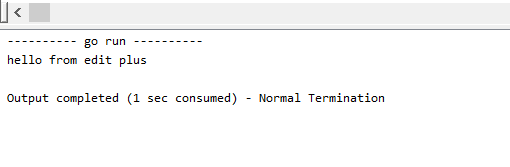
My shortcut is set to “Ctrl+1”. So, now every time I hit “Ctrl+1”, I can see the output of the Go program within the EditPlus output window as shown below:

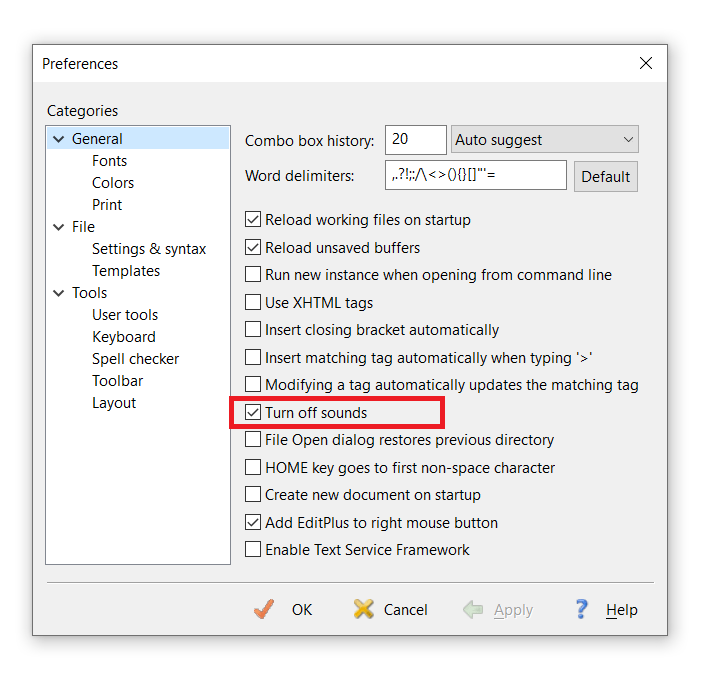
One final setting you may like is to turn off the “Ding” sound after each time the Go program runs. To do that, go to “Tools” -> “Preferences” -> “General”, then click “Turn off sounds”: